Article
azure-server
On this page 9
Building a Server on Azure
I recently noticed that GitHub Education includes free Azure credit and a domain name for one year, so I set up a server to experiment with.
0. Preparation
1) Student Verification
First apply for GitHub Education using your academic email address and student ID. Because the application verifies your region, connecting through your university VPN may make verification easier; that worked for me.
2) Azure
Next, open Azure and choose Sign in with GitHub.
(If GitHub sign-in fails, Azure may not recognize the linked email—for example, if your GitHub primary email is not your academic address. In that case, register a Microsoft account with your primary email and then use GitHub to sign in to Azure.)
3) Domain Name (Optional)
The GitHub Student Developer Pack provides a domain for one year. Open the Student Developer Pack, find Namecheap, search for a domain you like, and claim one year of free use.
If you plan to host a website on the server, continue with the following steps.
1. Creating the Server
Creating the server simply means creating a virtual machine in Azure.
There are many tutorials online; here is one Zhihu tutorial. Unfortunately, Basic may no longer include a free public IP.
-
If registration lets you choose a region, it is best to connect through a proxy and select an overseas region, because overseas accounts receive more free outbound transfer—apparently 15 + 100 GB per month, although I have not fully confirmed it. Domestic accounts receive only 15 GB.
-
As the tutorial says, choose the Standard SKU and a static IP. It costs extra—$43.80 per year—but there is not much alternative, and a static IP is genuinely more convenient.
Here is my virtual machine. 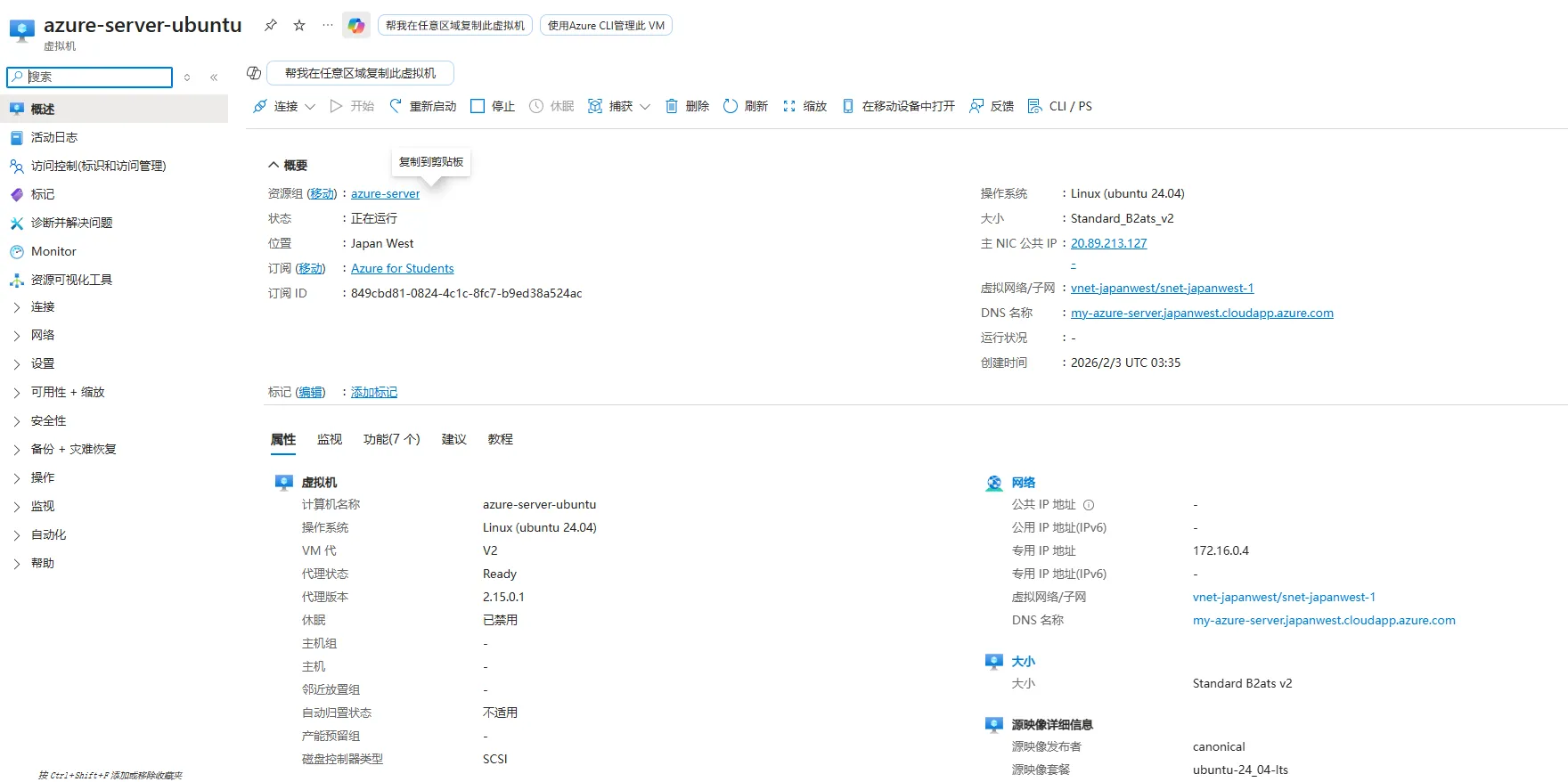
2. Domain Name
If you are deploying a website, you can bind the domain you just obtained.
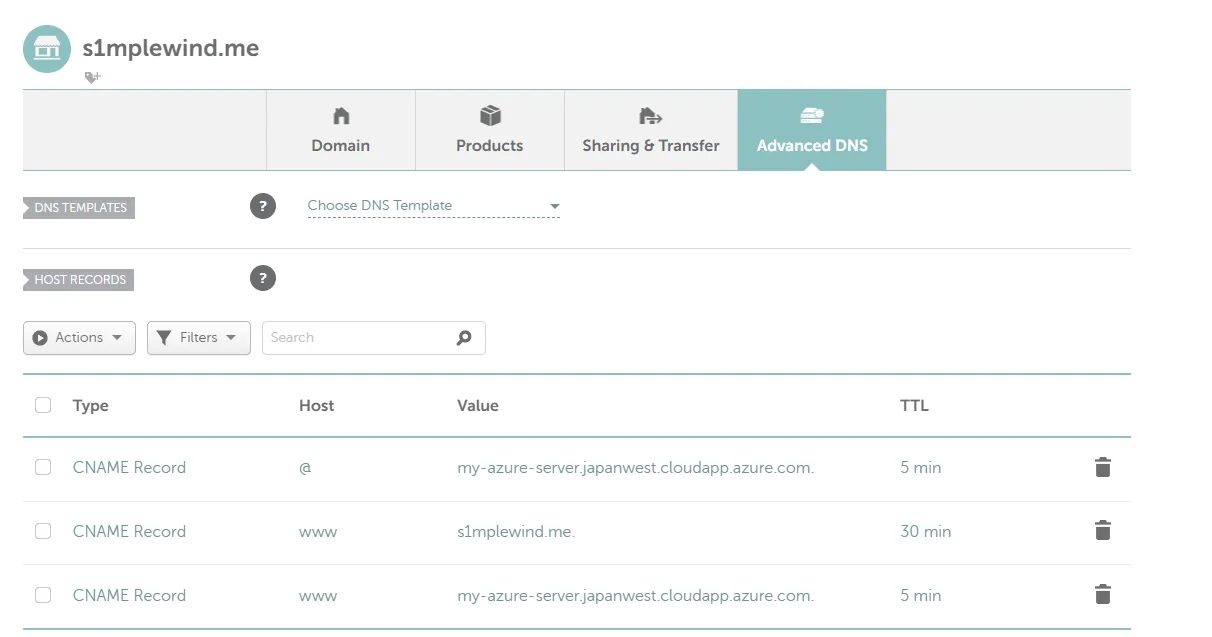
After creating the virtual machine, add an A record to the domain and point it to the server’s IP address.
The screenshot above shows a DNS name. A new VM does not have one, but you can enter a name you like and Azure will bind a Fully Qualified Domain Name (FQDN) to it.
You can then configure a CNAME record on the domain you just “purchased,” as shown below.
3. Hosting a Website
At this point, the server is ready to host a website.
I realized that I already had github.io and did not need another place for a static site, so I did not deploy one here.
I ultimately pointed the domain to github.io instead.
4. vpn
To avoid wasting the server, I decided to use it as a proxy.
Work in progress. See the follow-up post.